How to assign different points for specific statements in a grid question?
"How can I use reverse-scored items?"- Google Docs Editors Community
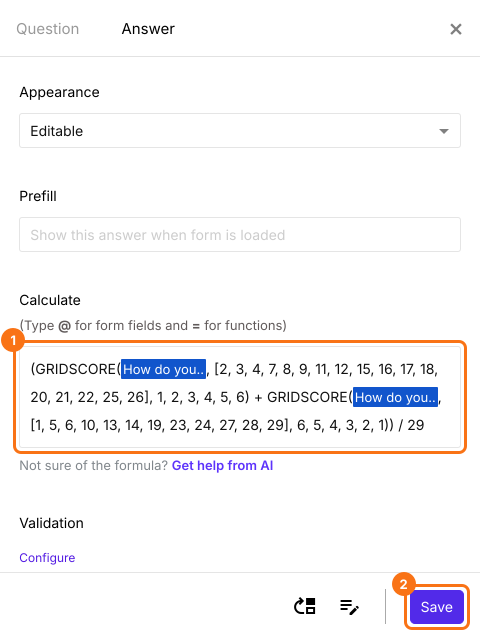
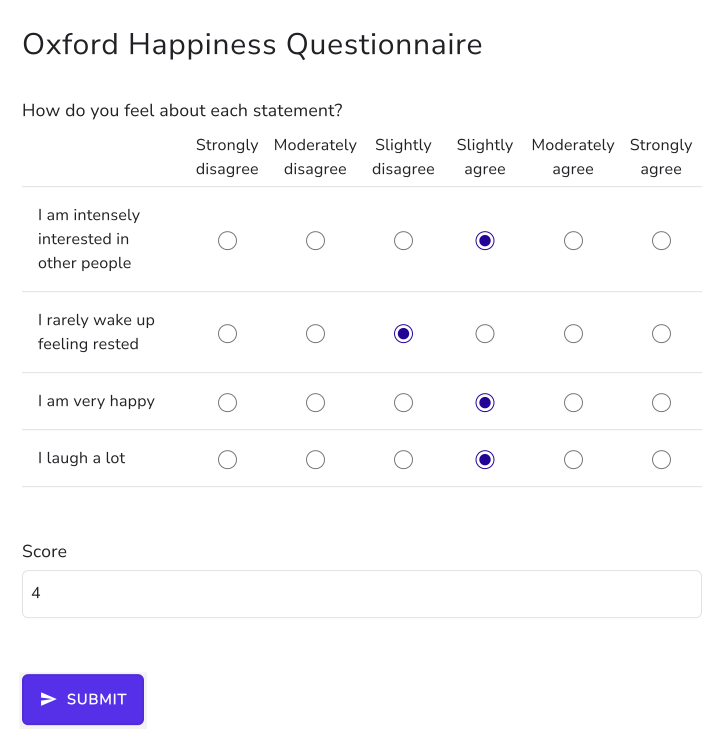
Validated questionnaires reverse-score some statements so people read each one before answering. In the Oxford Happiness Questionnaire, 12 of the 29 statements are scored backwards: strongly agree earns 6 on most rows and 1 on those. 22 people on Google's forum have asked how to use reverse-scored items in Google Forms. A grid question treats every row the same, and a Google Forms quiz can't put points on its columns, so the scoring moves to a spreadsheet. With Formfacade, the GRIDSCORE function takes a list of rows and the points for each column, so you write one GRIDSCORE for the normal rows and one for the reversed rows. The score is worked out on the form and syncs to Google Sheets in its own column.
Let's start. Import your Google Form and follow the steps below.
How to assign points using the GRIDSCORE function?
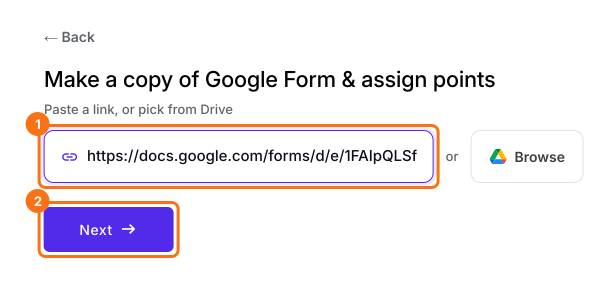
- On the page that opens, paste your Google Form's link or click Browse to pick it, then click Next.
- A description is already written under "Describe how you want to score this form". Change it to say how you want to score your form, for example: "In the grid question, statements 2, 3, 4, 7, 8, 9, 11, 12, 15, 16, 17, 18, 20, 21, 22, 25 and 26 get 1 point for strongly disagree up to 6 for strongly agree. The other statements get it the other way round, 6 down to 1. The score is the average of all 29 statements." Click Next.
- "How do you want to score?" shows what it did. Click View points to check the points for each answer, then click Next.
- On "You're all set!", click Preview form. Your form opens with its score in a new tab.
- Back on this page, click Share form under Manage: your form opens on the Share tab. Click the Edit tab.
- Your form already has a Score question, which may be named Total Score. Click on the score question, then click the ⚙️ icon.
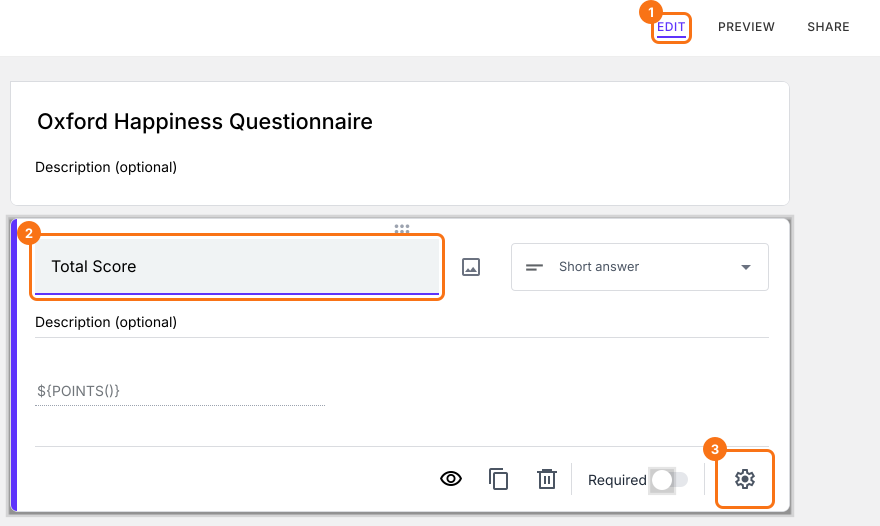
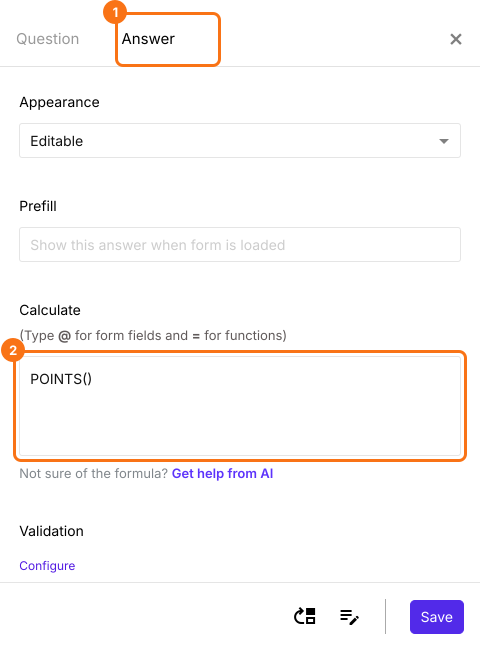
- Select the "Answer" tab and write the formula to assign points and calculate the score.
GRIDSCORE function
- strongly disagree = 1
- moderately disagree = 2
- slightly disagree = 3
- slightly agree = 4
- moderately agree = 5
- strongly agree = 6
- strongly disagree = 6
- moderately disagree = 5
- slightly disagree = 4
- slightly agree = 3
- moderately agree = 2
- strongly agree = 1
- The Calculate option already has POINTS(). Delete it and write the GRIDSCORE function in the Calculate option as shown below and click Save. The lowest happiness score is 1 and the happiest score is 6. The average score is slightly above 4.
Summary
Score some rows of your grid question differently.
Import your Google Form, write a GRIDSCORE with its own points for each group of rows and add them in the Score question. People see the score as they answer.