How to assign points for a grid question?
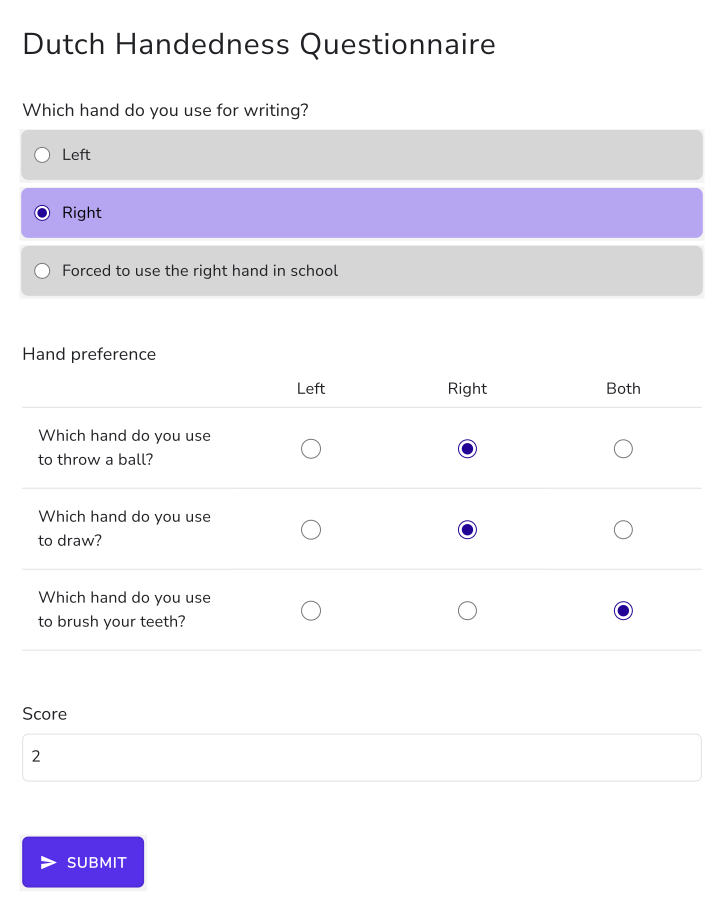
Standard questionnaires often come as a grid. The Dutch Handedness Questionnaire asks about ten activities, each answered Left, Right or Both, scored -1, +1 and 0. A Google Forms quiz can't put points on the columns of a multiple choice grid, so the score gets counted by hand. With Formfacade, one SCORE function in the Score question lists the points for each column, SCORE(entry#id, -1, 1, 0), and applies them to every row of the grid. Each person gets their score on the form, from -10 for fully left-handed to +10 for fully right-handed. When some rows score differently from others, use GRIDSCORE instead.
Let's start. Import your Google Form and follow the steps below.
How to assign points using the SCORE function?
- On the page that opens, paste your Google Form's link or click Browse to pick it, then click Next.

- A description is already written under "Describe how you want to score this form". Change it to say how you want to score your form, for example: "In the grid question, give Left -1, Right +1 and Both 0 on every row. Add them up into a score." Click Next.
- "How do you want to score?" shows what it did. Click View points to check the points for each answer, then click Next.
- On "You're all set!", click Preview form. Your form opens with its score in a new tab.
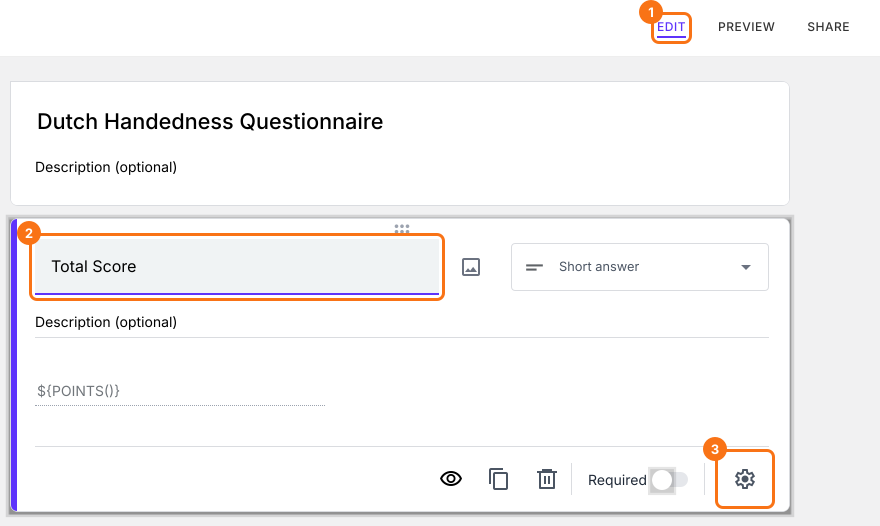
- Back on this page, click Share form under Manage: your form opens on the Share tab. Click the Edit tab.
- Your form already has a Score question, which may be named Total Score. Click on the score question, then click the ⚙️ icon.
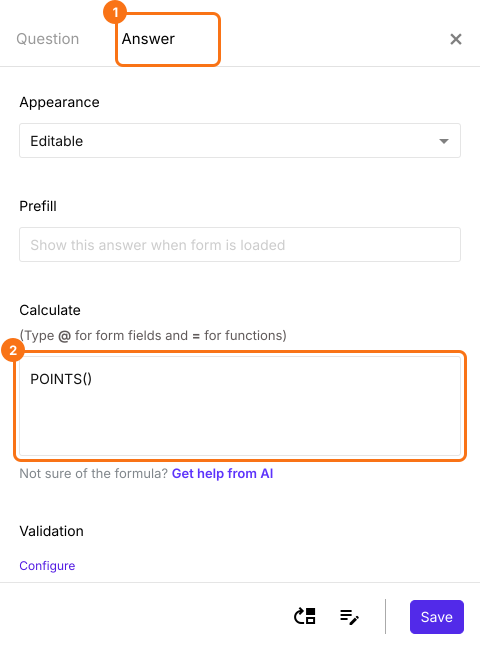
- Select the "Answer" tab and write the formula to assign points and calculate the score.
SCORE function
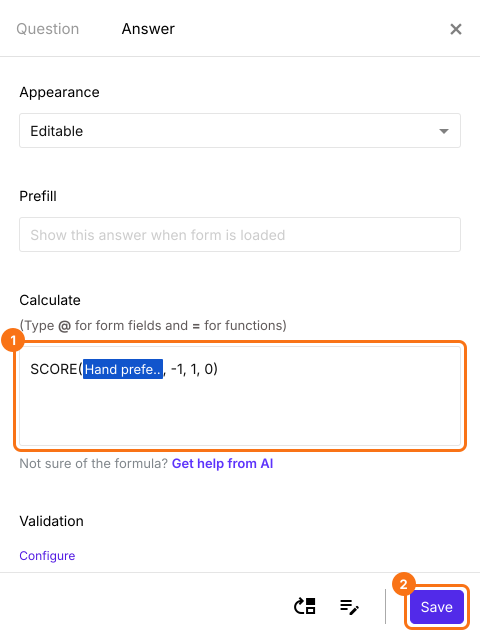
- The Calculate option already has POINTS(). Delete it and write the SCORE function in the Calculate option as shown below and click Save. The score varies from -10 for extreme left-handedness to + 10 for extreme right handedness.
Summary
Score every row of your grid with one SCORE function.
Import your Google Form and write SCORE with a value for each column in the Score question's Calculate option. It scores every row as people answer.