How to receive Google Forms responses on WhatsApp?
"How to submit responses from a Google Form to WhatsApp?"- Google Docs Editors Community
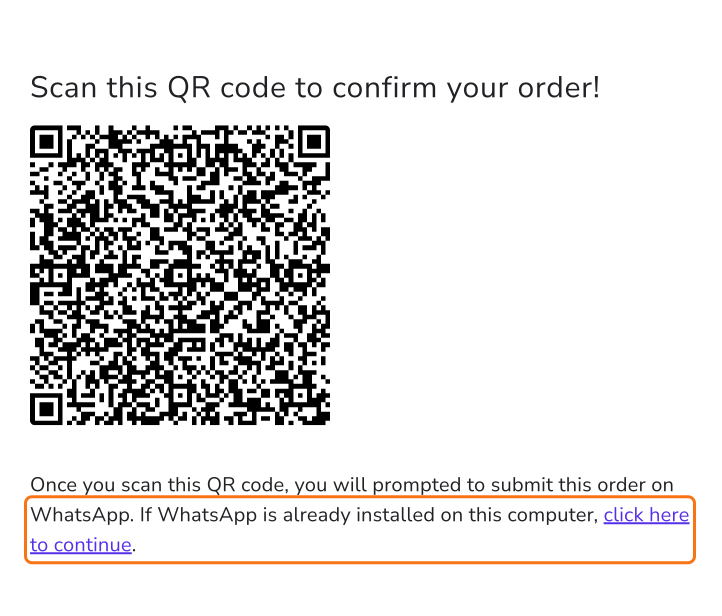
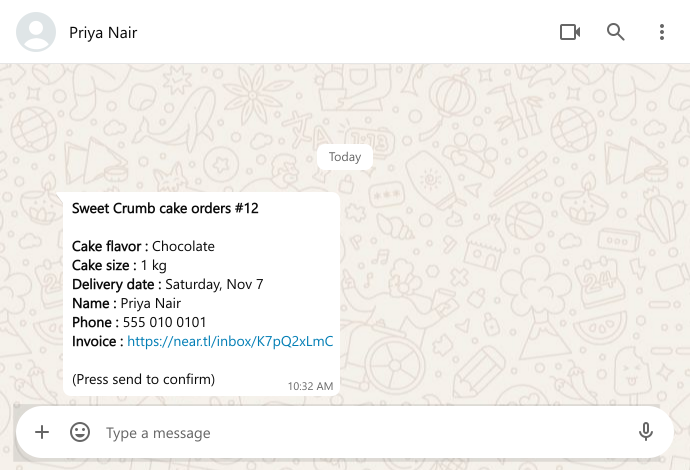
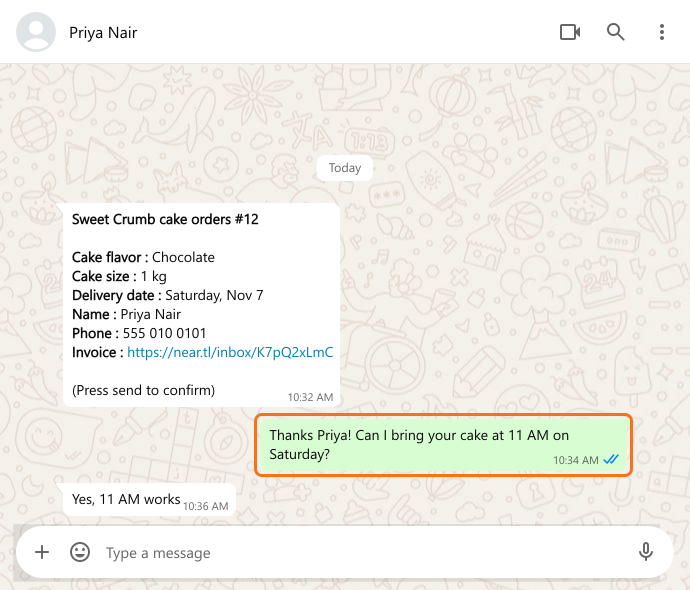
This is a common question, and 468 people on Google's forum have asked it. You share a Google Form and you'd rather see each response in WhatsApp, where you already talk to the people filling it in, than in your inbox. Google Forms only sends email notifications, so you open each one and copy the phone number into WhatsApp to reply. With Neartail, you set your WhatsApp number on the form. When someone submits it, WhatsApp opens on their side with their answers written out, and once they press send, the response reaches you as a message from their own number. You reply in the same chat.
Let's start. Import your Google Form and follow the steps below.
How to configure your WhatsApp number?
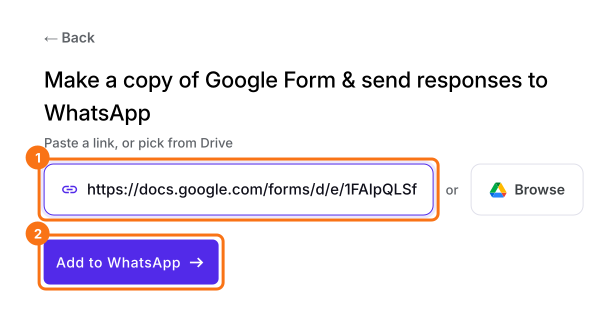
- On the page that opens, paste your Google Form's link or click Browse to pick it, then click Add to WhatsApp.
- It makes a copy of your form. If it says "Your form is private or protected", click Next and give access or publish your form in Google Forms and paste that link.
- Select your currency and click Continue.
- When it says "Your order form is ready", Neartail has made a product from each question with a price and added an order total and summary. If it says no products were found, add a price to any question.
- Click Preview your form. Then, under Manage, click Edit form to open the form builder.
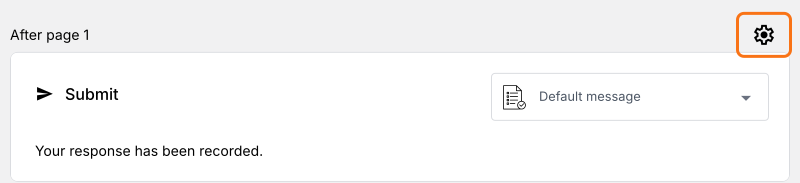
- Click the gear icon in the last After page row, above the Submit button. Your form doesn't send responses to WhatsApp until you set your number here.
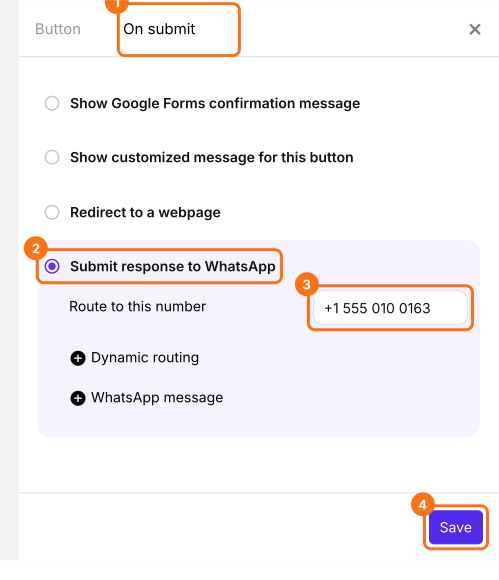
- Click On submit and select Submit response to WhatsApp.
- Under Route to this number, enter your WhatsApp number with your country code and click Save.
How to test your form?
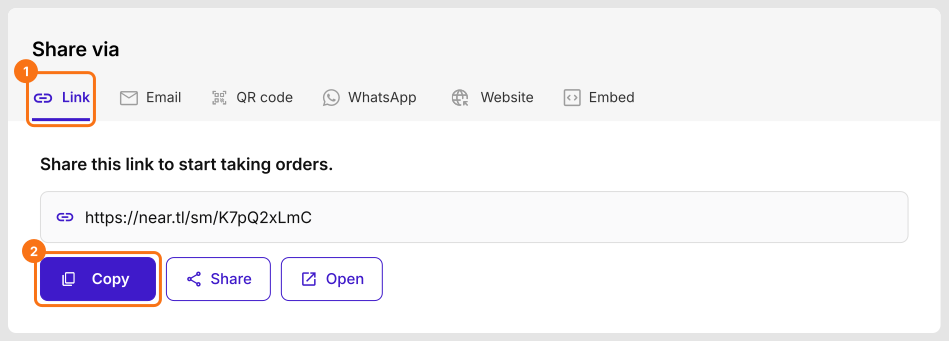
- Click the Share tab.

- Click Link and copy the link.
How will you receive the responses and reply to them?
Summary
Get your Google Form's responses on WhatsApp. Reply in the chat.
Import your Google Form and set Submit response to WhatsApp with your number. Each response comes from the person's own number, so you reply in that chat.