How to customize the form layout, fonts and colors?
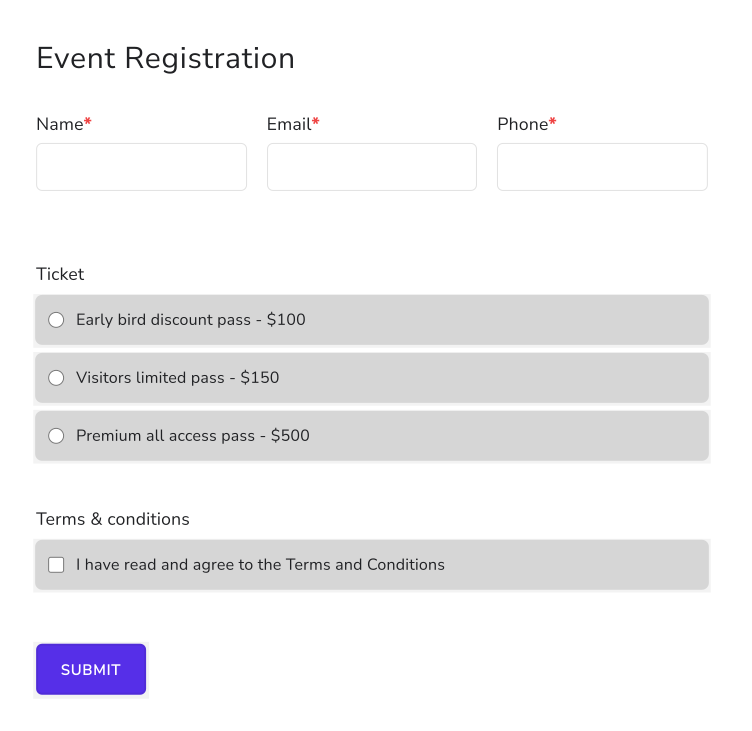
A registration or payment form with a dozen short questions becomes a long scroll in Google Forms, because every question takes a full row. Google Forms lets you change the fonts, the colors and the header, but not the layout. With Neartail, you choose a compact or comfortable layout, and short questions such as name, email and phone sit side by side, so people scroll less. The responses are still collected on your Google Forms, so your link to Google Sheets keeps working.
Let's start. Import your Google Form and follow the steps below.
Change the layout
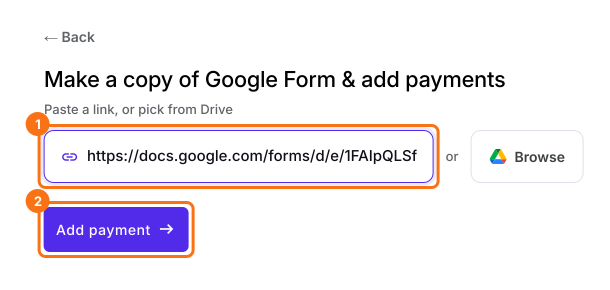
- On the page that opens, paste your Google Form's link or click Browse to pick it, then click Add payment.
- Select your currency and click Continue.
- When it says "Your order form is ready", Neartail has made a product from each question with a price and added an order total and summary. If it says no products were found, add a price to any question.
- Click Preview your form. Then, under Manage, click Edit form to open the form builder.
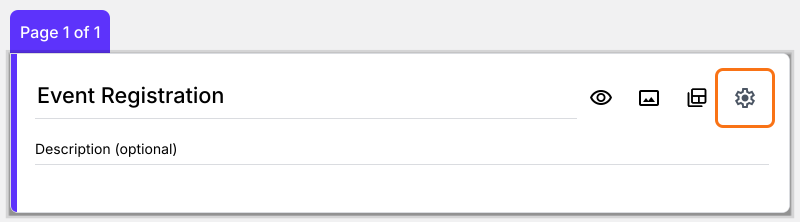
- Click the form title, then click the gear icon.
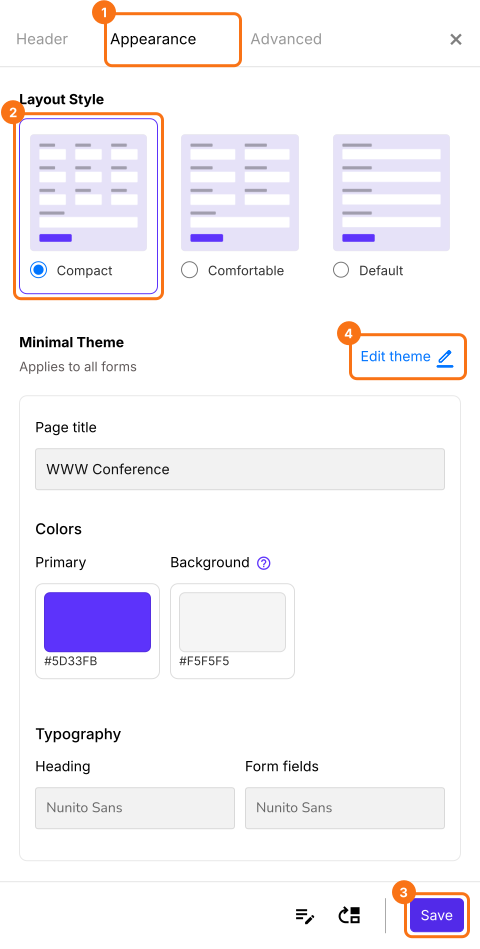
- Click Appearance, select Compact or Comfortable and click Save. To change the fonts, colors and font size as well, click Edit theme. A saved theme restyles every live form on your account, not only this one.
Summary
Change your Google Form's layout, fonts and colors.
Import your Google Form, select Compact under Appearance and click Edit theme for fonts and colors, so short questions sit side by side and people scroll less.