How to accept PayNow payments in Google Forms?
In Singapore, many customers would rather pay with PayNow than with a card. Google Forms can show your UEN or a picture of your PayNow QR code, but it can't put the amount in the code. So customers type the amount themselves, send you a screenshot and you check each one by hand. With Neartail, customers see the total when they submit and scan a PayNow QR code to pay you. Each order then waits on your Kanban board until you've checked it, so you aren't scrolling through screenshots.
Below are two ways to take PayNow payments with a Google Form, and where the first one falls short.
1. Put your UEN or PayNow QR code in the form
2. Take PayNow payments in the form with Neartail
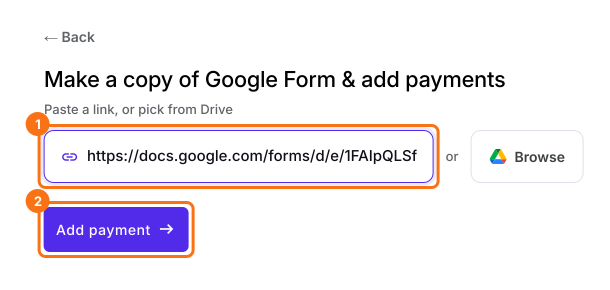
- Click Import your Google Form. On the page that opens, paste your Google Form's link or click Browse to pick it, then click Add payment.
- Select your currency and click Continue.
- When it says "Your order form is ready", Neartail has made a product from each question with a price and added an order total and summary. If it says no products were found, add a price to any question.
- Click Preview your form. Then, under Manage, click Edit form to open the form builder.
- At the end of the editor, click Enable under Payments disabled, then click Enable next to Do you want to collect payment.
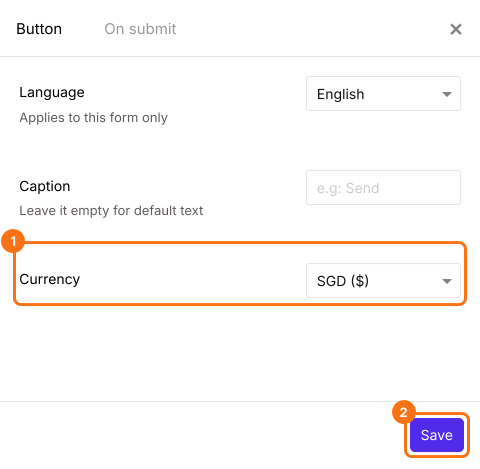
- PayNow is listed only for forms in SGD. If your form is in another currency, close the Payments panel, click the gear icon in the After payment row, the last row above the Submit button, select SGD in Currency and click Save. Then click Edit in the Payments row.
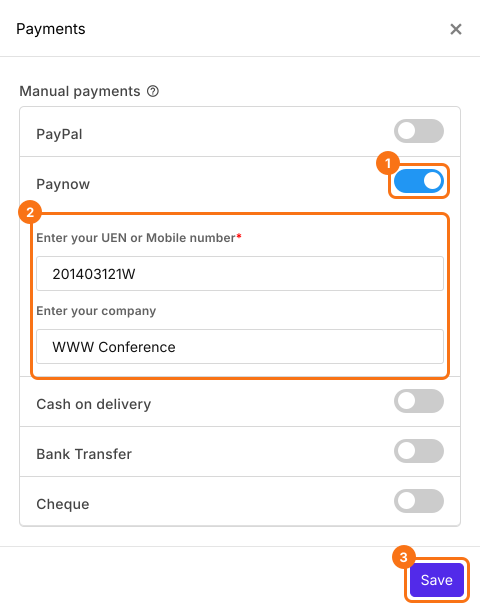
- Under Manual payments, turn on Paynow, enter your UEN or mobile number and your company and click Save.
Check the amount
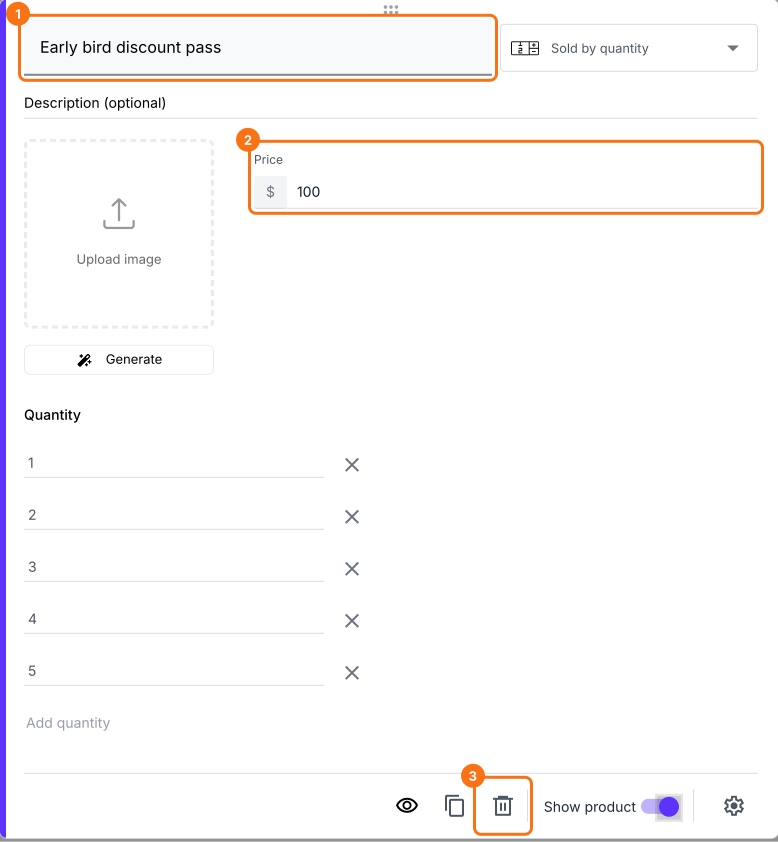
- Click a product card to change its title or price. To remove a product you don't sell, click the delete icon at the bottom of its card.
- Click Preview and submit the form to try it.

Summary
Add PayNow to your Google Form. Skip the payment screenshots.
Import your Google Form and add PayNow with your UEN or mobile number, so customers pay the total from a QR code instead of sending screenshots.