How to add order id in the confirmation email subject?
Every email from a Google Form has the same subject, so a busy inbox fills with identical lines and finding one order means opening them one by one. When a customer writes in about their order, neither of you can search for it. In Neartail, the subject of your order confirmation email already ends with the order number, and you can add any answer from the form, such as the customer's name or pickup time, by typing @.
Import your Google Form and follow the steps below.
How to customize the email subject?
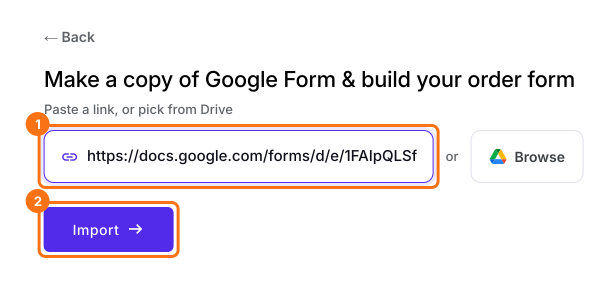
- On the page that opens, paste your Google Form's link or click Browse to pick it, then click Import.
- Select your currency and click Continue.
- When it says "Your order form is ready", Neartail has made a product from each question with a price and added an order total and summary. If it says no products were found, add a price to any question.
- Click Preview your form. Then, under Manage, click Edit form to open the form builder.
- Click on "Orders" tab

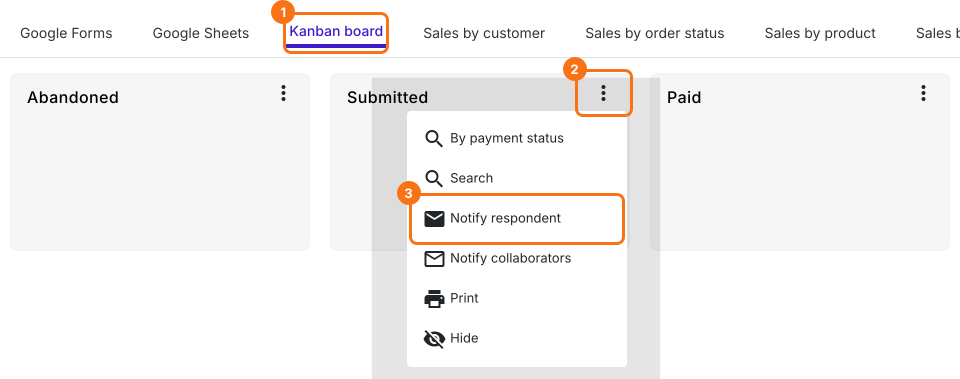
- Click Kanban board, click the ⋮ on Submitted and select Notify respondent
- Pick the question that asks for the email address from the list and click on the Next button
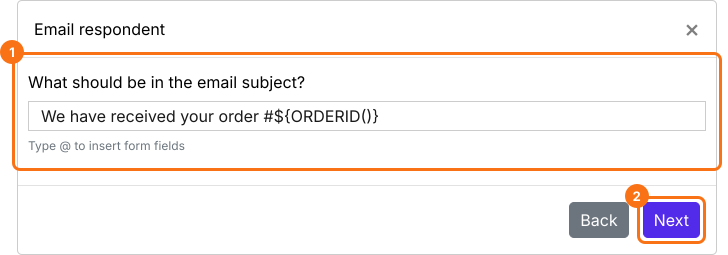
- The subject is already your form's title followed by #${ORDERID()}, which is the order number. You can change the words before it as shown below
- You can customize the email subject using any of the form fields. Type @ in the subject and select the field from the list. It will add the entry id for that form field
- Click on the Next button. Your message is already filled in, so click on the Next button again, click on "Click here", submit a test response with your own email address in the form and click on the YES button
With fields such as the name, email or phone in the subject of your new order emails, your staff can search their inbox and find an order straight away.
By using key details such as amount to be paid, pickup time etc in the subject line of the order confirmation emails, you can make it easy for your users to get more context about the email.
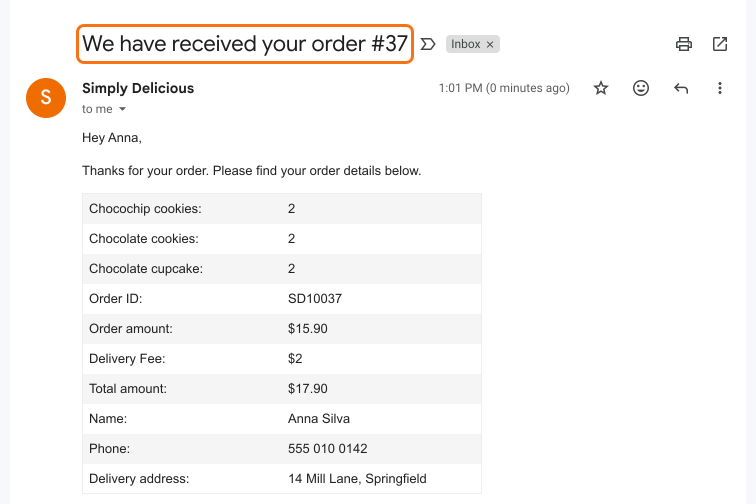
Example order confirmation email with customized subject & order number
Summary
Google Forms sends every response with the same subject, so orders are hard to find in an inbox. With Neartail, the confirmation email's subject carries the order number and any field you add, for you and your customer to search. Import your Google Form and complete the steps above.
Add the order id to your confirmation email subject.
Import your Google Form and set up Notify respondent. Its subject already ends with the order number and @ adds any answer, so orders are easy to search.