How to calculate total amount to include transaction fees

"pass the transaction fee for stripe and for PayPal on to the buyer"- Support forum

Card payments cost you a fee: Stripe keeps a fixed amount and a percentage of each charge, so a $100 order pays you less than $100. To pass that on, the customer has to be charged a little more, worked out from their total. A Google Form can't take payment or calculate anything, so there's no place to add it. With Neartail, the amount charged comes from a Net Amount field, and you can write it as a formula that adds the fee to the order total. Customers see the final amount on the form before they pay.

The formula comes first, then how to charge it on your order form.

Transaction charges

Stripe charges include a flat fee plus a percentage of the total amount. The flat fee and the total charge percentage must be factored into the final charge amount to ensure that you receive the desired amount, after Stripe deducts the fee from the charge.
Final Amount = (Total amount + Fixed flat fee) / ( 1 - Stripe % Fee)

Example: Final amount calculation for US

Stripe charges for US = 2.9% + 30¢ per successful charge
Let's say the total amount is $100. If you would like to pass the transaction fees on to your customers, the final amount to be charged to the customer can be calculated as follows:
Final amount = ($100 + 30¢) / ( 1 - 2.9%) = 100.30/0.971 = $103.29

How to charge the final amount in your form?

  • On the page that opens, paste your Google Form's link or click Browse to pick it, then click Import.
  • Select your currency and click Continue.
  • When it says "Your order form is ready", Neartail has made a product from each question with a price and added an order total and summary. If it says no products were found, add a price to any question.
  • Click Preview your form. Then, under Manage, click Edit form to open the form builder.
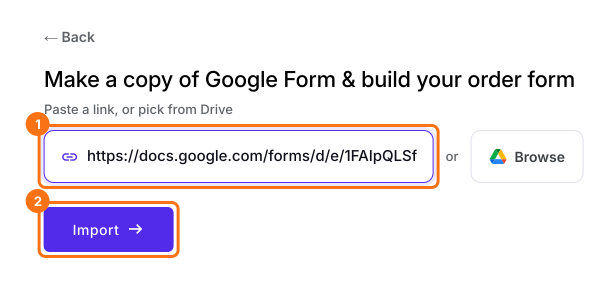
The Neartail page to import a Google Form, with a form link pasted in and the link box and the Import button marked
Your form now has your products and an order total question that adds up by itself. In this article, it's called Order Amount.
  • Click on the Order Amount question, then click Add price field in the toolbar on the right
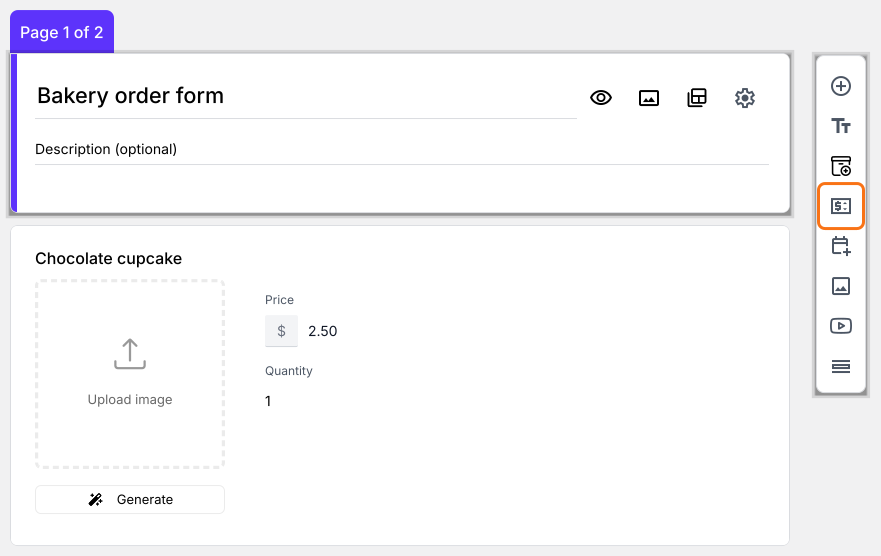
The form in the editor, with the Add price field icon marked in the toolbar on the right
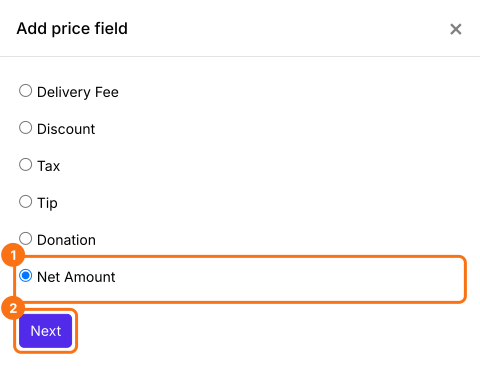
  • Select Net Amount and click Next
The Add price field list, with Net Amount selected and Next marked
  • Select Standard calculation using NETTOTAL() and click Next
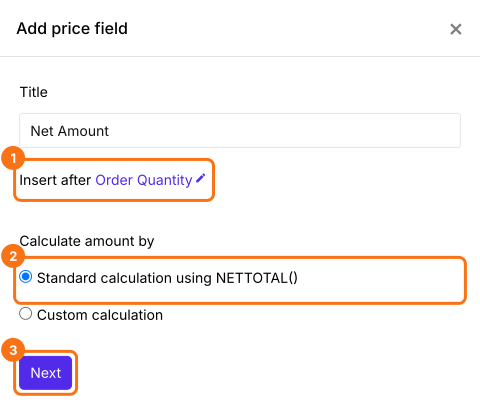
The Net Amount settings with Insert after Order Quantity and Standard calculation using NETTOTAL() selected, marked with Next
  • Click Create. You will replace this formula in the next step
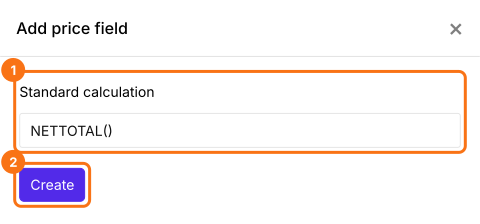
The Standard calculation box with NETTOTAL() and the Create button marked
  • In Field settings, select the Answer tab. Replace what is in the Calculate option with the formula as shown below. TOTAL() is the order amount. Click Save
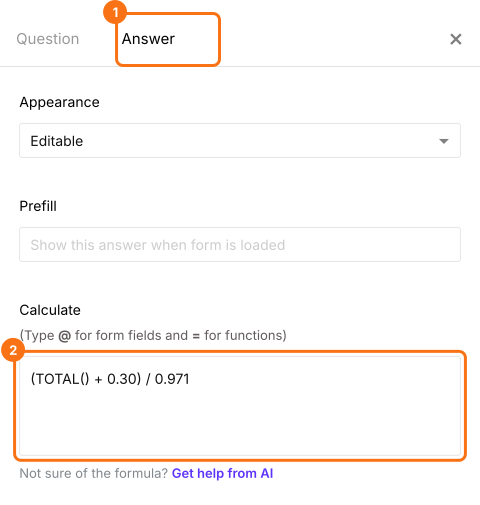
The Answer tab of the field settings with TOTAL() plus 0.30, divided by 0.971 in the Calculate box, with the Answer tab and the box marked
Your customers pay the Net Amount, with the fee in it. This formula leaves out any Delivery Fee or Discount, so use it on a form that has neither. To turn on card payments, follow How to accept online payments directly through your order form?

Useful Links (Stripe)

Summary

Card fees come out of what you receive unless you add them to what the customer pays, and a Google Form can't do that sum. With Neartail, you write the fee into the Net Amount formula and customers see and pay the final amount. Import your Google Form and complete the steps above. If you have any questions, write to support.

Add the card fee to your order form's total.

Import your Google Form and write the fee into a Net Amount formula, so customers see the final amount, fee included, before they pay.

Last updated: