How to show the bill in your order forms?
"How do I show the summary of an order, organised in 4 columns"- Support forum
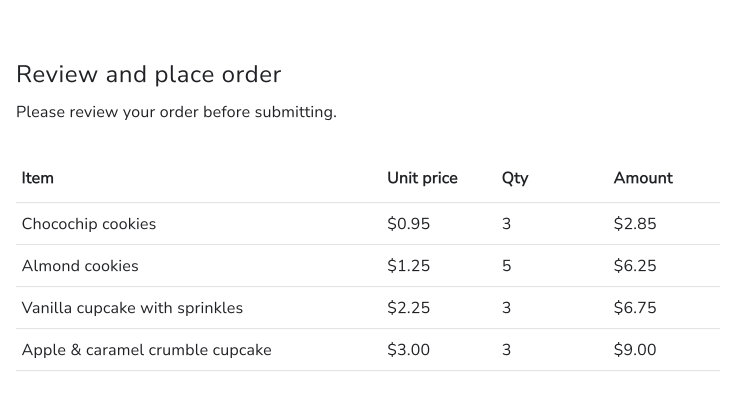
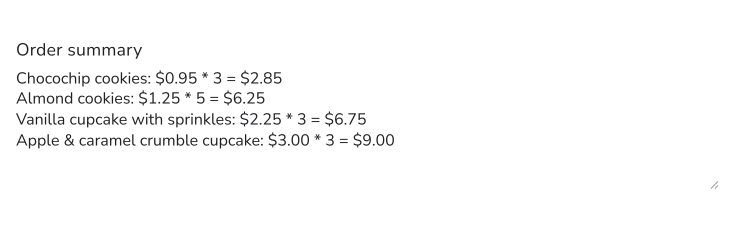
Before someone places an order, they want to check it: each product, its price, how many and what it comes to. A Google Form never shows that back. It records the choices and leaves the customer to trust their own sums, so mistakes surface after you've started on the order. Neartail's BILL function puts a bill on the review page of your Google Form, with the price, quantity and amount of each product and any fees under them. TEXTBILL records the same bill in the response, so you see exactly what the customer saw.
Import your Google Form and follow the steps below.
How to display the bill in your order form?
- On the page that opens, paste your Google Form's link or click Browse to pick it, then click Import.
- Select your currency and click Continue.
- When it says "Your order form is ready", Neartail has made a product from each question with a price and added an order total and summary. If it says no products were found, add a price to any question.
- Click Preview your form. Then, under Manage, click Edit form to open the form builder.
- Your form already has a section that shows the bill, called Review and place order in the pictures. To change what it says, click on the section, then click the ⚙️ icon.

BILL function
- currency - identifier to find the price in the description/answer choices. The currency can be a symbol or text, but it has to exactly match the format used in the description/answer choices.
- entry### - Entry #id of the fields such as amount, delivery fees etc to be included in the bill. You can type @ and select the required field to add the entry #ids in the formula. This is an optional parameter.
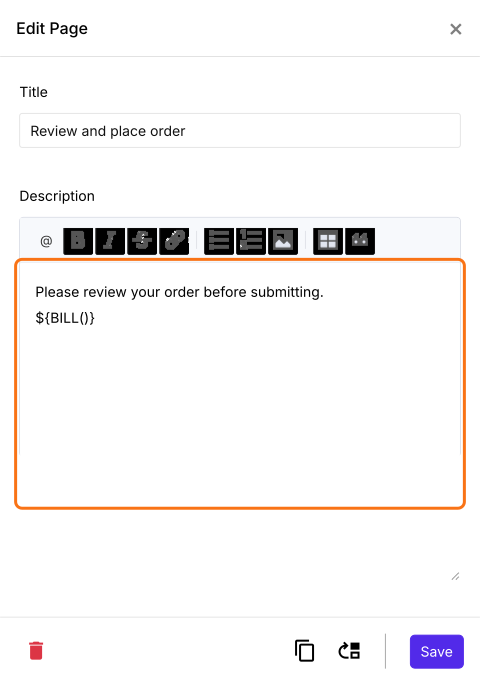
- In Edit Page, the description already has the ${BILL()} formula as shown below. You can type your own words around it or write the currency in it, such as ${BILL("$")}. Use the currency symbol your prices have. Click Save
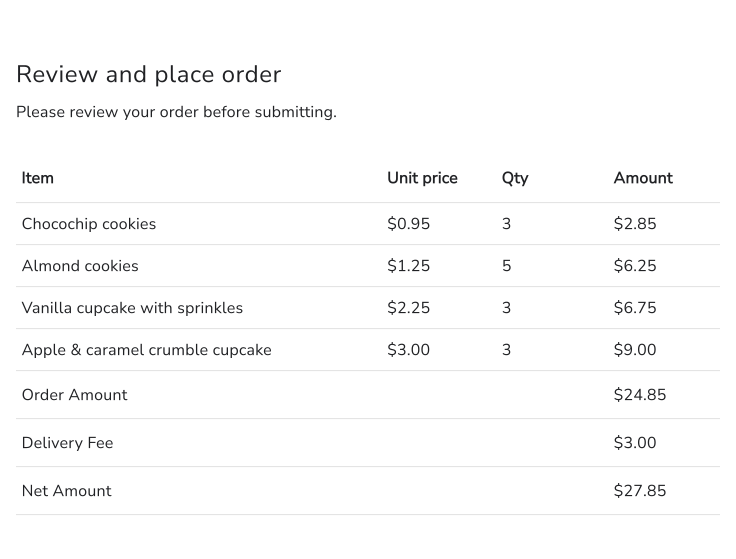
How to show the Order Amount, delivery fee and total amount in the bill?
How to show the bill and record it in the responses?
- Click on the Order Amount question, then click Add field in the toolbar on the right
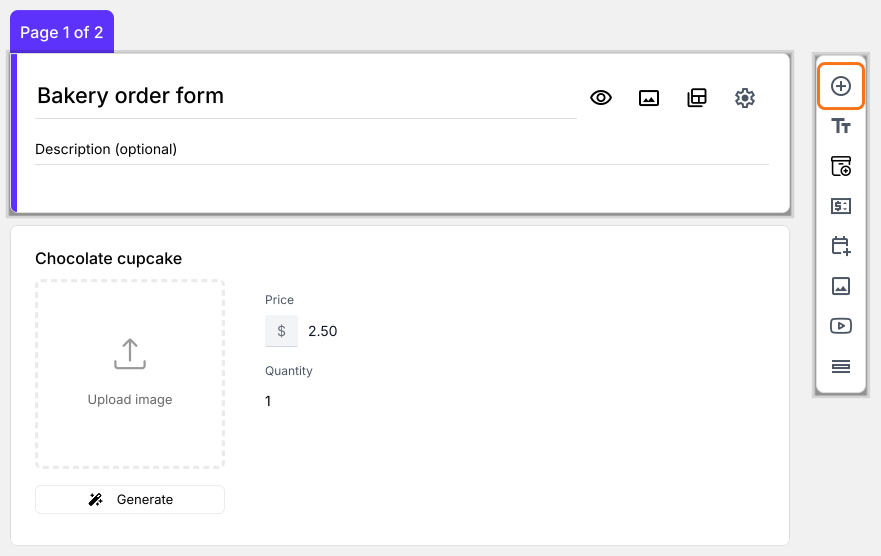
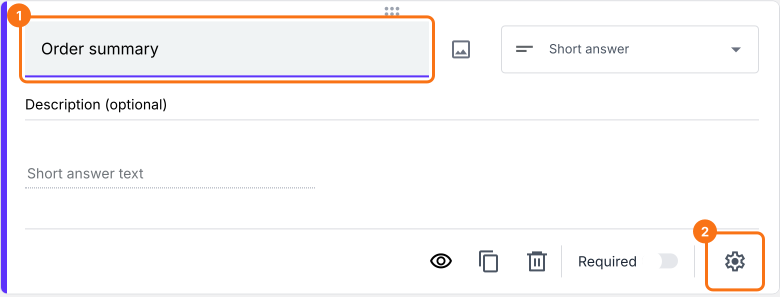
- Enter Order summary as the new question's title and change the question type to Paragraph in its list
- Click the ⚙️ icon
Use TEXTBILL function to show the bill and also record it in the responses
- currency - identifier to find the price in the description/answer choices. The currency can be a symbol or text, but it has to exactly match the format used in the description/answer choices.
- entry### - Entry #id of the fields such as amount, delivery fees etc to be included in the bill. You can type @ and select the required field to add the entry #ids in the formula. This is an optional parameter.
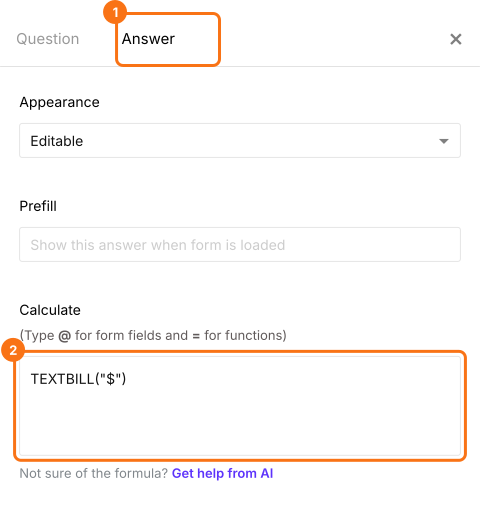
- In Field settings, select the Answer tab. Write the TEXTBILL function in the Calculate option as shown below and click Save. Use the currency symbol your prices have
Summary
Show customers a bill on your order form.
Import your Google Form. Its review page already uses BILL(), so customers check each product's price, quantity and amount before they submit.