How to personalize the message in email notifications sent to form respondents?
"receive a confirmation e-mail along with the assigned unique id for them"- Google Docs Editors Community
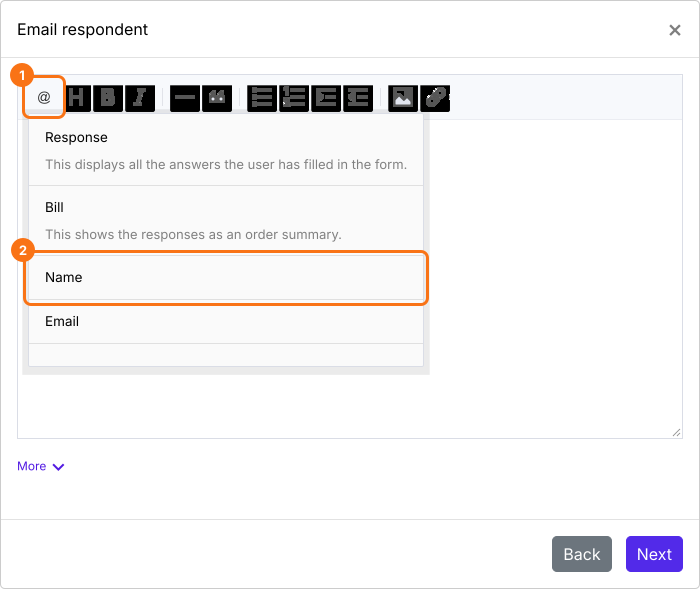
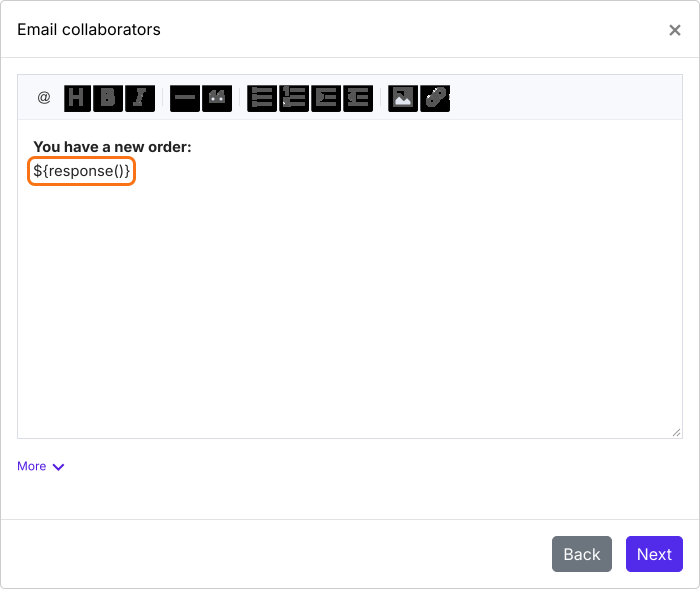
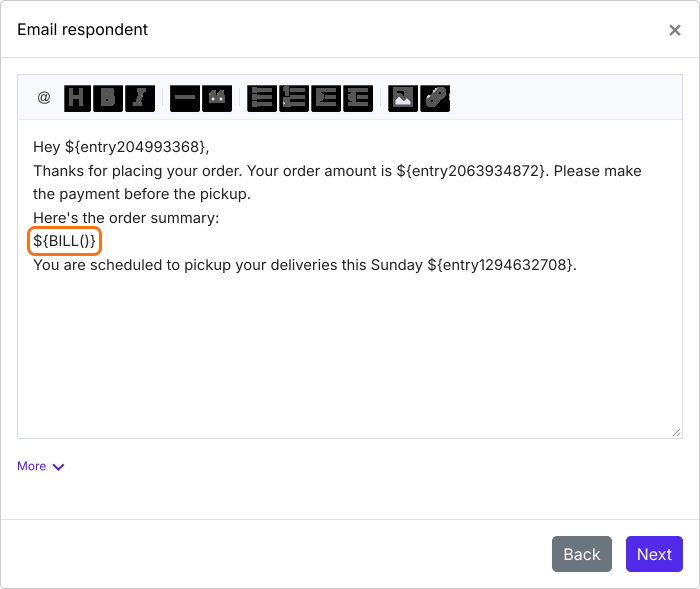
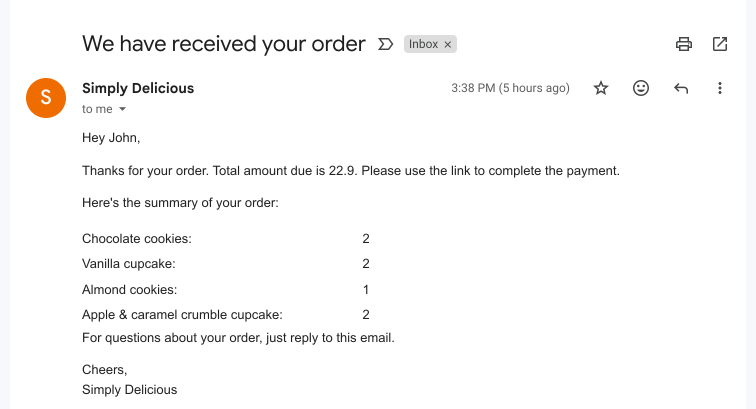
An email that reads the same for everyone feels like an automatic reply. People expect to see their own name, their order or the reference number they were given. Google Forms can send a copy of the response, but you can't add your own message to it or choose which answers to show. With Formfacade, you put answers from the form into the message wherever you want them. You can add all the answers with RESPONSE, or an order summary with BILL. The form carries your branding too, so the form and the email both sound like your business.
Let's start. Import your Google Form and follow the steps below.
Personalize the message
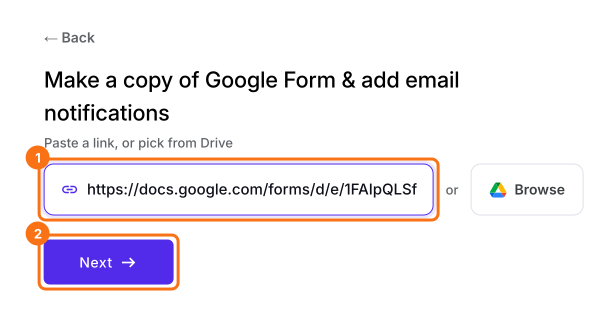
- On the page that opens, paste your Google Form's link or click Browse to pick it, then click Next. The Email respondent box opens on the Kanban board under Responses.
- Under What is the email address of the respondent?, pick the email question from the list and click Next.
- Check the subject and click Next.
- Click Next.
- Click "Click here", fill in the form with your own email address and submit it. When the email arrives, click YES.
Summary
Put each person's answers in the email they get.
Import your Google Form and use the @ option to put their answers in your message, all of them with Response or an order summary with Bill.